Муқаддима
This manual provides instructions for the Bewinner Universal Smartphone Telescope Adapter Mount. This adapter is designed to connect your smartphone to various optical devices such as telescopes, monoculars, binoculars, and microscopes, enabling you to capture images and videos through their eyepieces. Please read this manual thoroughly before use to ensure proper installation and operation.
Маҳсулот ба охир расидview
Хусусиятҳои асосӣ:
- Convenient Observation: Барои бароҳат тарҳрезӣ шудааст viewing angles, reducing eyestrain during extended observation sessions.
- Easy Knob Control: Features simple, user-friendly knob controls for effortless adjustment of focus and device stability.
- Мутобиқати васеъ: Suitable for eyepieces with an outer diameter of 28-48mm and supports phones with a width of 55-95mm. Compatible with most microscopes, telescopes, binoculars, and monoculars.
- Муҳофизати дастгоҳ: Incorporates a soft sponge design to protect your phone and optical device from scratches or damage.
- Сабук ва устувор: Constructed from high-strength plastic, ensuring durability and portability for travel.
Компонентҳо:
- Смартфон Clamp
- Окуляр Clamp
- Adjustment Knobs (for phone and eyepiece)
- Дасти пайвасткунанда

Дастурҳои насб
- Attach Smartphone:
Carefully open the smartphone clamp. Place your smartphone into the clamp, ensuring it is securely held by the soft sponge pads. Adjust the knob on the side of the phone clamp to firmly secure your phone. The clamp supports phone widths between 55mm and 95mm.
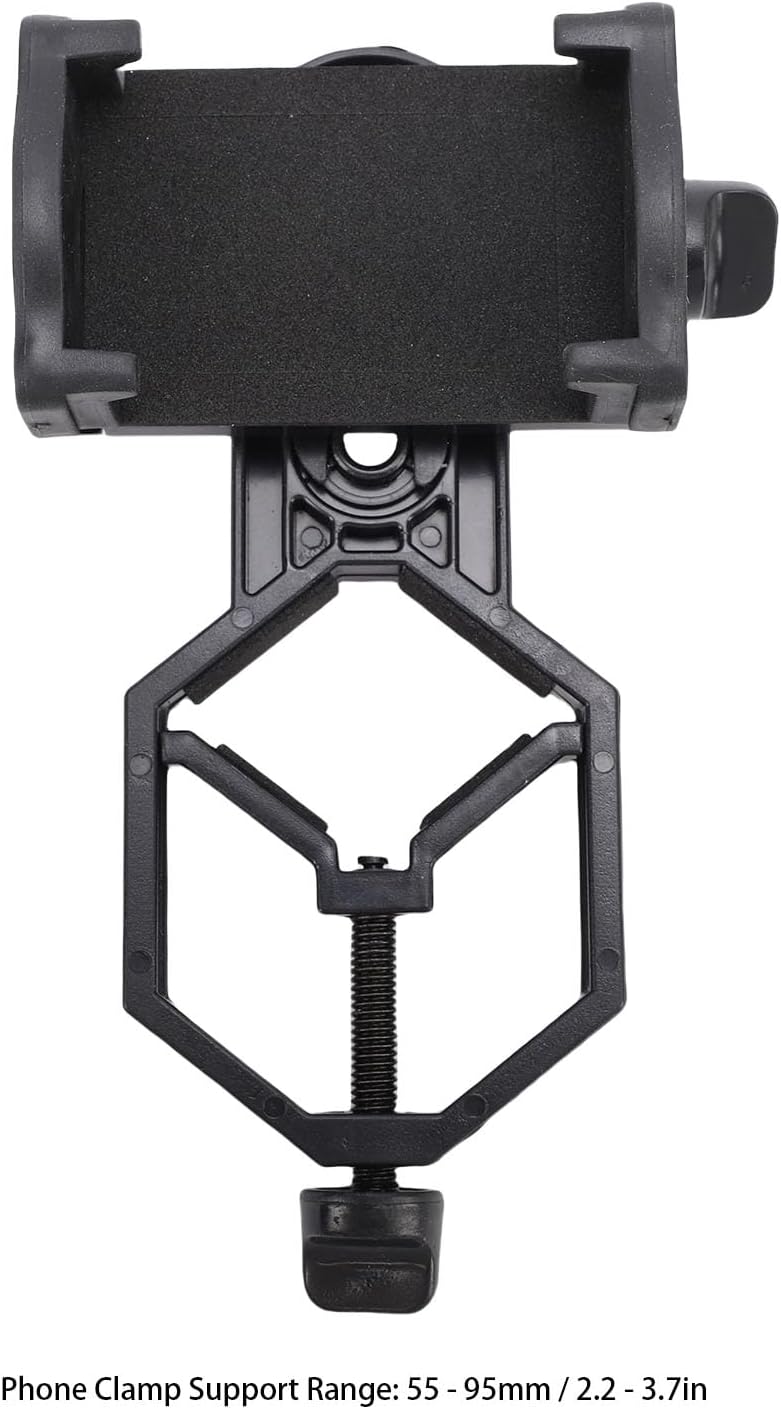
Figure 2: The smartphone clamp, illustrating its adjustable range for various phone sizes. - Align Phone Camera:
Once your phone is secured, adjust its position within the clamp so that its primary camera lens is centered over the adapter's opening. This alignment is crucial for capturing a clear view through the optical device.
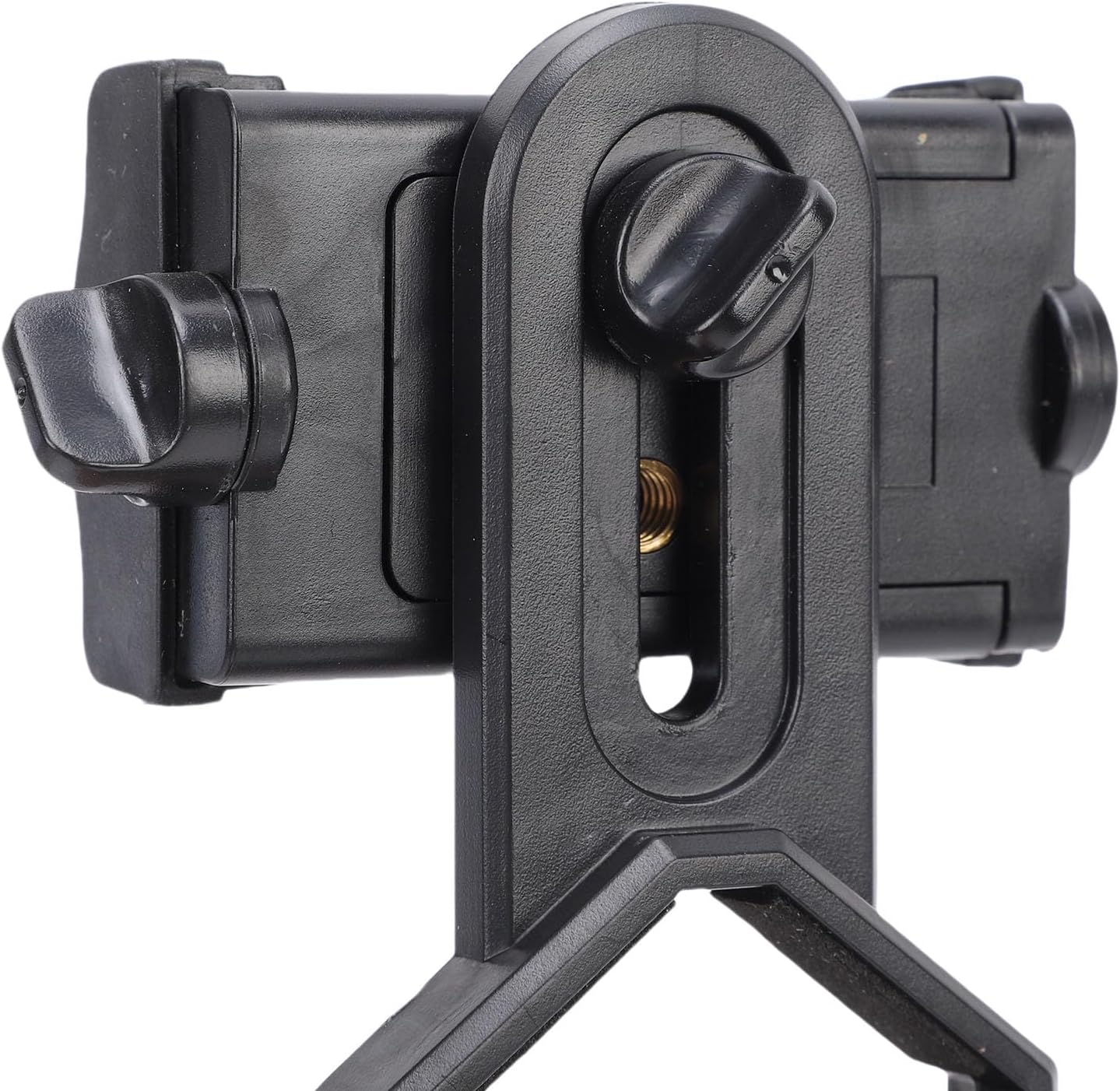
Расми 3: Муфассал view of the phone clamp mechanism, highlighting the soft pads for device protection. - Attach to Optical Device Eyepiece:
Окулярро кушоед clamp at the bottom of the adapter. Slide it over the eyepiece of your telescope, monocular, or microscope. Tighten the lower knob to secure the adapter firmly to the eyepiece. Ensure the eyepiece's outer diameter is between 28mm and 48mm for a secure fit.

Figure 4: The adapter securely mounted onto an optical device, demonstrating its attachment to the eyepiece.
Дастурҳои амалиётӣ
- Power On Smartphone Camera:
Open your smartphone's camera application. You should see the view from the optical device on your phone screen.
- Танзими ҳамоҳангсозӣ:
Fine-tune the position of your phone within the clamp and the adapter on the eyepiece until the circular field of view from the optical device is centered and clear on your phone screen. Use the adjustment knobs for precise positioning.

Расми 5: Як тараф view of the adapter, illustrating the various adjustment points for optimal alignment. - Фокус:
Use the focus mechanism of your optical device (telescope, microscope, etc.) to achieve a sharp image on your smartphone screen. The adapter itself does not provide focusing capabilities.
- Тасвирҳо/видеоҳо гиред:
Once focused, use your smartphone's camera controls to take photos or record videos of your observations.

Figure 6: An individual using the smartphone adapter with an optical device, demonstrating a typical use scenario.
Нигоҳдорӣ
- Тозакунӣ: Wipe the adapter with a soft, dry cloth. Avoid using harsh chemicals or abrasive materials that could damage the plastic or sponge pads.
- Нигоҳдорӣ: Адаптерро дар ҷои тоза ва хушк, дур аз нури бевоситаи офтоб ва ҳарорати аз ҳад зиёд ҳангоми истифода набаред, нигоҳ доред.
- Санҷиш: Periodically check the adjustment knobs and clamps for any signs of wear or damage. Ensure all parts are functioning correctly.
Мушкилкушо
- Тасвири норавшан:
- Ensure your optical device is properly focused.
- Verify that your smartphone camera lens is perfectly aligned with the adapter's opening and the eyepiece.
- Check for any dust or smudges on your phone's camera lens or the optical device's eyepiece.
- Phone or Adapter Not Secure:
- Confirm that the phone clamp and eyepiece clamp knobs are tightened sufficiently.
- Ensure your eyepiece diameter (28-48mm) and phone width (55-95mm) are within the supported ranges.
- Винеттинг (Канҷҳои торик):
- Adjust the phone's position to center the image.
- Zoom in slightly on your smartphone camera if necessary to eliminate dark edges, though this may reduce the field of view.
Мушаххасоти
| Навъи ашё | Telescope Phone Adapter |
| Материал | Пластмасса |
| Окуляр Clamp Support Range | 28 - 48mm (1.1 - 1.9in) |
| Телефон Clamp Support Range | 55 - 95mm (2.2 - 3.7in) |
| Андозаҳои маҳсулот | 6.3 x 2.76 x 2.36 инч |
| Вазни ашё | 3.53 унция |
| Рақами модел | Bewinner25gmyx3qpa |
Кафолат ва дастгирӣ
This product is manufactured by Bewinner. For any support inquiries or warranty information, please refer to the retailer where the product was purchased or visit the official Bewinner brand store online. Please retain your proof of purchase for warranty claims.
For more information about Bewinner products, you can visit the Мағозаи Бевиннер.
