1. Муқаддима
This manual provides essential information for the safe and efficient use of your artfone G6 Pro 4G LTE Flip Phone. Please read it thoroughly before operating the device to ensure proper functionality and to understand all features.
2. Мундариҷаи баста
Боварӣ ҳосил кунед, ки ҳамаи ҷузъҳои дар поён овардашуда ба бастаи маҳсулоти шумо дохил карда шудаанд:
- 1x artfone G6 Pro Mobile Phone (Battery not installed)
- Батареяи 1х 1300 мАч
- 1x Сими пуркунандаи USB
- 1x Дастури корбар
- 1x Пойгоҳи пуркунӣ/пойгоҳ

Image: Package contents of the artfone G6 Pro, showing the phone, battery, USB cable, user manual, and charging dock.
3. Танзимот
3.1. Насби корти SIM ва батарея
- Сарпӯши қафоро хориҷ кунед: Gently pry open the back cover of the phone.
- SIM-кортро гузоред: Locate the Nano SIM card slot. Insert your Nano SIM card with the gold contacts facing down, ensuring it clicks into place.
- Insert Micro SD Card (Optional): If desired, insert a Micro SD card (up to 64GB) into the designated slot for expanded storage.
- Батареяро насб кунед: Place the 1300mAh battery into the battery compartment, aligning the gold contacts with the phone's terminals.
- Сарпӯши қафоро иваз кунед: Securely reattach the back cover.
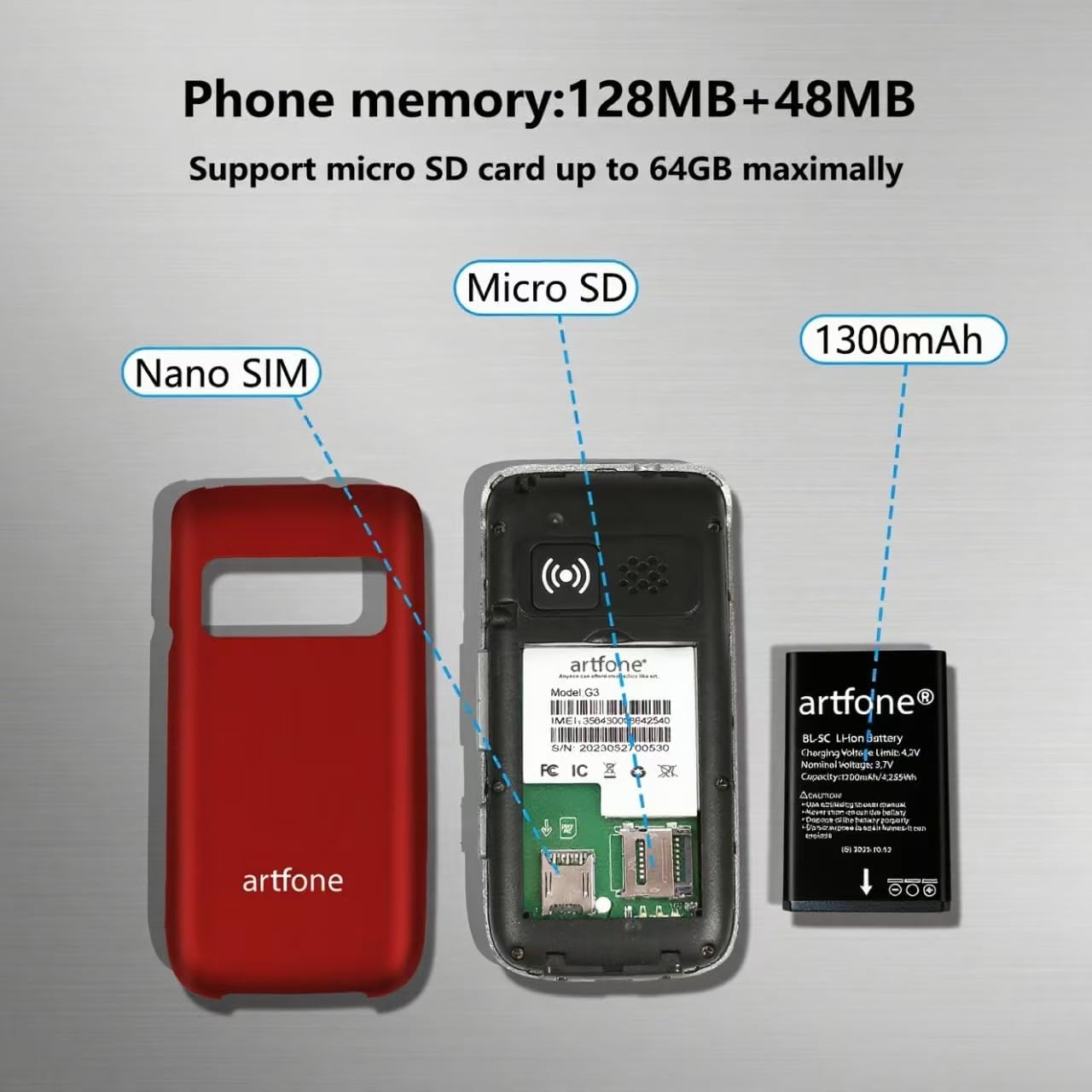
Тасвир: дохилӣ view of the artfone G6 Pro, illustrating the Nano SIM slot, Micro SD card slot, and battery placement.
3.2. Пуркунии телефон
Your artfone G6 Pro can be charged using the included USB-C cable or the charging dock.
- Истифодаи доки пуркунандаи барқ: Place the phone into the charging dock. Ensure the charging indicator appears on the screen.
- Истифодаи кабели USB-C: Connect the USB-C cable directly to the phone's charging port and to a power adapter.

Image: Charging the artfone G6 Pro using either the USB-C cable or the charging dock.
3.3. Фаъол/хомӯш
To power on or off, press and hold the red 'End Call' button until the phone vibrates or the screen lights up/shuts down.
4. Дастурҳои истифодабарӣ
4.1. Функсияҳои асосии занг
- Занг задан: Dial the number using the keypad and press the green 'Call' button.
- Ҷавоб додан ба занг: Open the flip to answer, or press the green 'Call' button.
- Анҷом додани занг: Close the flip to hang up, or press the red 'End Call' button.
Video: Demonstrates basic call functions, including answering by flipping open the phone and ending calls by closing it.
4.2. Фиристодани паёмҳои матнӣ
Navigate to the 'Message' menu, select 'New Message', enter the recipient's number or select from contacts, type your message using the keypad, and send.
4.3. Навигатсияи интерфейси корбар
The phone features an intuitive UI with large icons and clear text. Use the navigation keys to scroll through menu options like Contacts, Tools, Message, SOS, Calendar, Settings, Internet, Multimedia, and Call logs.

Тасвир: тамомview of the artfone G6 Pro's user-friendly menu interface.
5. Хусусиятҳоview
5.1. Dual LCD Screens
The phone features a 2.4-inch inner screen and a 1.8-inch outer display. The outer display shows time, caller ID, and notifications without needing to open the phone.

Image: artfone G6 Pro displaying its dual screens, one on the exterior when closed and one on the interior when open.
5.2. Функсияи SOS дар ҳолати фавқулодда
The dedicated SOS button on the back of the phone allows you to quickly contact up to five pre-set emergency contacts. Press and hold the button for 3 seconds to activate the SOS function, which will automatically dial and send distress messages until someone answers.

Тасвир: Қафо view of the artfone G6 Pro highlighting the SOS emergency button.
5.3. Speed Dial and Photo Contacts
Assign frequently called numbers to dedicated A/B keys and numbers 2-9 for quick dialing. You can also assign photos to contacts for easier identification of callers.
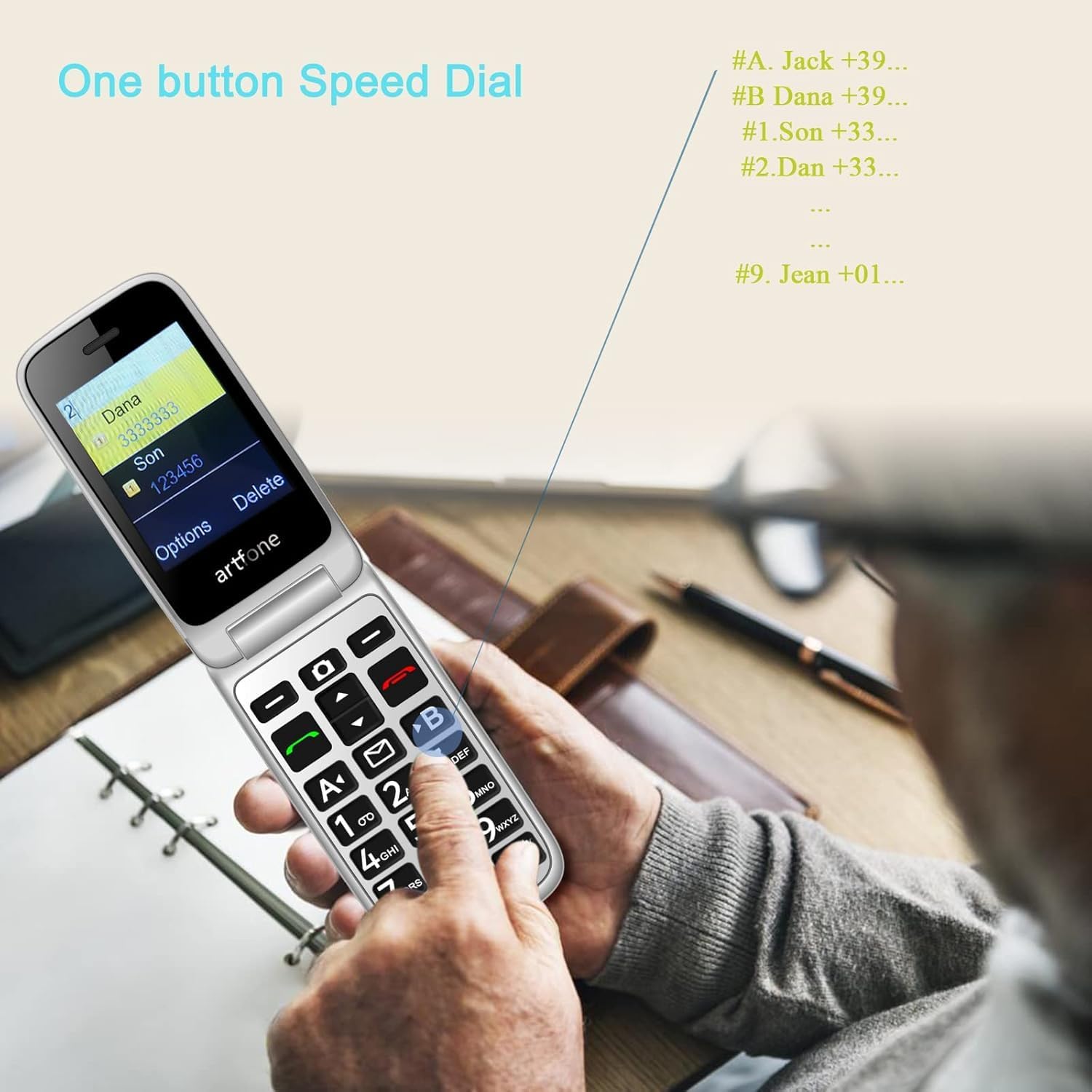
Image: Demonstrating the one-button speed dial feature on the artfone G6 Pro.
5.4. Talking Clock (Time Reporting)
Hold the volume + key for 3 seconds, and the phone will audibly announce the current time.
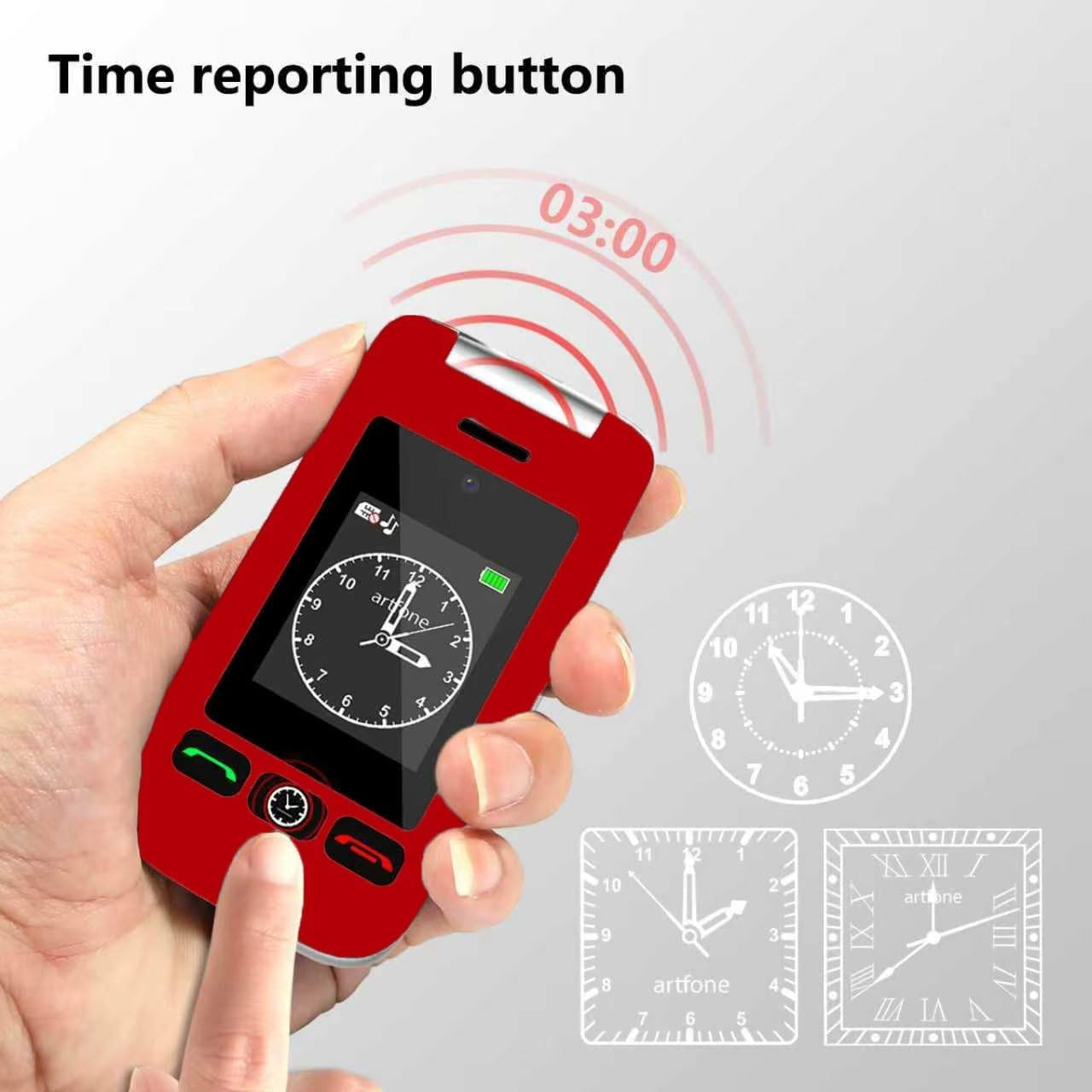
Image: The time reporting button on the artfone G6 Pro, which announces the current time audibly.
5.5. Дурахш
A dedicated flashlight button on the side of the phone allows for quick activation. Slide up/down to toggle the flashlight on or off.

Image: The artfone G6 Pro featuring a flashlight, FM radio, and a 3.5mm headphone jack.
5.6. Дигар хусусиятҳо
- Камера: A basic 0.3MP camera is included for capturing simple moments.
- Радиои FM: Enjoy FM radio on the go.
- Блутуз: Connect to compatible Bluetooth devices.
- Воситаҳо: Includes a calculator, alarm clock, and calendar. Multiple alarm settings are available for reminders.
- Садои баланд: AAC speakers and receivers provide clear and loud audio for calls.
6. Нигоҳдорӣ
- Тозакунӣ: Барои тоза кардани беруни телефон аз матои нарм ва хушк истифода баред. Аз тозакунандаҳои моеъ худдорӣ кунед.
- Нигоҳубини батарея: To prolong battery life, avoid extreme temperatures and do not leave the phone fully discharged for extended periods.
- Нигоҳдорӣ: Store the phone in a cool, dry place when not in use.
- Муқовимат ба об: Ин телефон ба об тобовар нест. Аз таъсири моеъ худдорӣ намоед.
7. Баррасии мушкилот
7.1. No Service / Network Issues
- SIM-кортро тафтиш кунед: Ensure the Nano SIM card is correctly inserted and activated with a compatible carrier (T-Mobile and its virtual operators ONLY; not compatible with AT&T or Verizon).
- Телефонро аз нав оғоз кунед: Power off and then power on the phone.
- Фарогирии шабака: Verify you are in an area with adequate 2G, 3G, or 4G LTE network coverage.
7.2. Phone Not Charging
- Пайвастҳоро тафтиш кунед: Ensure the USB-C cable and/or charging dock are securely connected to the phone and power source.
- Санҷиши манбаи барқ: Розеткаи дигари барқӣ ё порти USB-ро санҷед.
- Inspect Cable/Dock: Check for any visible damage to the charging cable or dock.
7.3. Масъалаҳои аудио
- Танзими садо: Adjust the call volume during a conversation.
- Speaker/Receiver Obstruction: Ensure the speaker and receiver are not blocked by debris.
- Silent/Vibration Mode: Long-press the # key to toggle silent/vibration modes. Ensure the phone is not in silent mode if you expect audible alerts.
7.4. MMS Not Downloading
- Танзимоти шабака: Ensure your carrier's MMS settings are correctly configured.
- Нигоҳдорӣ: Check if there is sufficient storage space on the phone or Micro SD card.
- Secure Inbox: Some MMS messages may require access through a 'secure inbox'. The default PIN is often 1234, but it is recommended to change this for security.
8. Мушаххасоти
| Хусусият | Мушаххасоти |
|---|---|
| Номи модел | G6Pro |
| Бренд | artfone |
| Технологияи мобилӣ | 4G (Compatible with T-Mobile and virtual operators ONLY) |
| Интиқолдиҳандаи бесим | Қулф кушода шуд |
| Низоми амал | artfone Mocor RTOS |
| Андозаи экран | 2.4 Inches (Inner), 1.8 Inches (Outer) |
| Резолюция | 180 x 240, 240 x 180 |
| Андозаи хотираи насбшудаи RAM | 48 Мб |
| Иқтидори нигаҳдории хотира | 0.3 GB (Expandable up to 64GB with Micro SD) |
| Иқтидори батарея | 1300 миллионamp Соатхо |
| Вақти гуфтугӯи телефонӣ | 8 соат |
| Вазни ашё | 8.1 унция |
| Технологияҳои пайвастшавӣ | Bluetooth, USB |
| Хусусиятҳои махсус | Basic Phone, Expandable Memory, Time Reporting, SOS Button, Charging Dock, Loud Speaker, Camera, Talking Clock, Speed Dial, Hands-free, Caller-ID, Large Fonts |
| Формаи форма | Флип |
| Jack Audio | 3.5 мм |
9. Кафолат ва дастгирӣ
For warranty information or technical support, please contact artfone customer service. Refer to the contact details provided in your product packaging or visit the official artfone website. Please have your product model (G6 Pro) and purchase details available when contacting support.


